
What Is Microsoft DreamSpark and How Do You Use It?
http://dreamsparktr.msakademik.net/ describes Microsoft DreamSpark as follows:
“Microsoft DreamSpark is a service that allows university students to obtain Microsoft software development and design tools free of charge.
To benefit from this service, students need to verify their student status and repeat this every 12 months. Student status verification every 12 months is carried out online by the universities.”
So how can we benefit from this service that Microsoft provides to us university students?
First, we go to https://www.dreamspark.com and click the Sign In button in the top right corner.
In the Windows Live sign-in screen that appears, in the account details section, we enter the details of the Windows Live account provided by our university, ending in …@ogr.ktu.edu.tr, and click the Sign in button.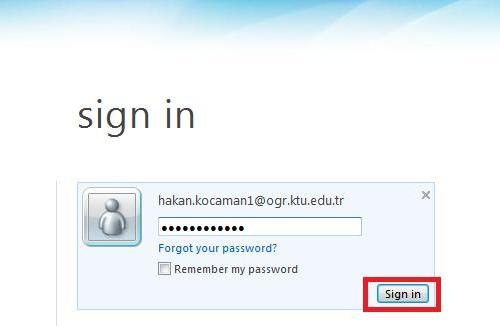
Once signing in is complete, the browser automatically redirects us back to the DreamSpark home page. From this point on, we start verifying that we are students by clicking the Get Verified tab in the left menu of the home page.
On this new page, as the first step we specify which country we live in, as the second step how we want to verify, and as the third and final step what kind of verification we want to do. Then we press the Continue button.
After these steps, on the page that opens we find and select our school from the list. Since I studied at KTÜ, I selected the Karadeniz Technical University option. (However, one notable point is that besides the option I selected, there are 2 more options for KTÜ. Although I don’t know why, it is worth mentioning that my attempts with the KTÜ options in the first two entries did not work, whereas my attempt with the last one went without any problem. If you run into a similar problem with your university, try all the options.)
Finally, type the email of the Windows Live account your university provided into the boxes, press the Verify button and complete the verification. After that, all you need to do is click the link in the activation email that will arrive in your university email account within a few minutes.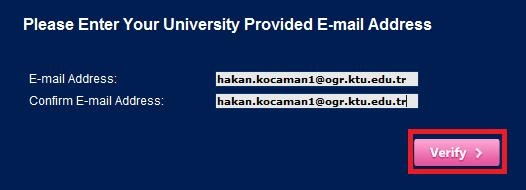
After this, you will be able to download any program available on DreamSpark to your computer and use it with your own licence. I hope you find this useful…
Posted: by Hakan KOCAMAN
